
GolfCompat
Garmin R50: Documented Connection Checks
GSPro recommends the R50 hotspot connection and also documents shared home Wi-Fi. Check that the PC joins the network shown by the R50 and keep Connect open. The captured guide contains a conflicting button label, so confirm the actual R50 interface.
Placement and technology
- Name
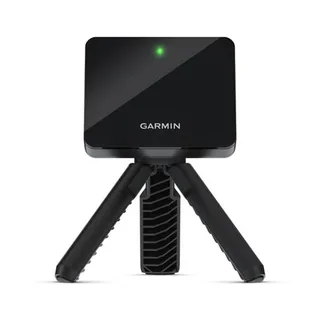
- Garmin R50
- Sensor placement
- Beside the ball
- Measurement technology
- camera
Manufacturer placement instructions
No model-specific clearance measurement has been verified in these records. Obtain the exact model’s installation instructions before assessing equipment fit.
Check the exact device and connection
On the R50, swipe right to Connect and select GSPro. Join the displayed R50 network from the PC. GSPro says internet access passes through the R50. Its shared home Wi-Fi alternative may be less reliable because network conditions vary. Start GSPro and leave Connect open or minimized.
Apply only the documented next steps
The R50 guide says the Garmin R50 option appears, but its next line calls the button “Garmin R10.” That label conflict remains unresolved; do not switch models based on it. After converting a GSPro license between device types, GSPro says clearing the Connect application is typically necessary. Use the named interface in its illustrated clear-settings guide, then restart GSPro to select the new type. The interfaces differ; use the vendor screenshots rather than a guessed sequence.
Source: GSProRead October 15, 2026
Garmin R50 Setup · Publication date not stated for this section
The Garmin Approach R50 can connect to GSPro in two ways:
Captured document guidance for the named model and software. It does not establish a diagnosis or a tested fix for an individual installation.
Source: GSProRead October 15, 2026
How To Clear GSPro Connect Settings · Publication date not stated for this section
Once completed, restart GSPro to be presented with the new selection options.
Captured document guidance for the named model and software. It does not establish a diagnosis or a tested fix for an individual installation.
Related guides
Sources (2)
GSPro: GSPro Version 3
What launch monitor devices are supported?Read October 18, 2026
What launch monitor devices are supported? · Publication date not stated for this section
Garmin R50
Garmin: Premium Golf Launch Monitor and Simulator
Launch Monitor Placement ConsiderationsRead October 18, 2026
Launch Monitor Placement Considerations · Publication date not stated for this section
You must place the launch monitor approximately 1.5 ft. (0.5 m) to the side of the tee location.
Using the Golf Simulator FeaturesRead October 18, 2026
Using the Golf Simulator Features · Publication date not stated for this section
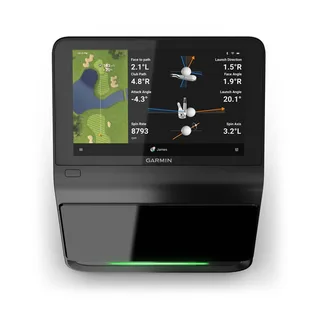
These features use internal cameras to record measurements that help you analyze your practice.
Launch Monitor Placement ConsiderationsRead October 18, 2026
Launch Monitor Placement Considerations · Publication date not stated for this section
The launch monitor must face the tee location.
Launch Monitor Placement ConsiderationsRead October 18, 2026
Launch Monitor Placement Considerations · Publication date not stated for this section
For best results, you should place the launch monitor at approximately the same height as the tee location.
This document supports the cited model or software requirement. We have not performed hands-on equipment testing.
GolfCompat provides planning information. Confirm the instructions for your exact equipment and have your room, swing clearance, and installation assessed before use. A listed equipment requirement does not certify personal safety.