
GolfCompat
Uneekor EYE XO: Documented Connection Checks
For the original EYE XO, Uneekor’s manual requires power and a direct LAN connection to the PC before software installation. GSPro separately lists EYE XO support and an active Uneekor Pro Package prerequisite. These documents do not establish EYE XO2 installation instructions.
Placement and technology
- Name
- Uneekor EyeXO
- Sensor placement
- Overhead
- Measurement technology
- camera
Room measurements
Table help
Scroll sideways to read all columns. Keyboard: focus the table area and use the arrow keys.
| Monitor | Dimension | Measurement endpoints | Published value | Meaning |
|---|---|---|---|---|
| Uneekor EyeXO | Mounting height | top of hitting area to bottom of mounting bracket | 9 ft (2743.2 mm) to 10 ft (3048 mm) | Mounting range |
Check the exact device and connection
Use the supplied LAN cable and the manual’s power-connection diagram. Uneekor says the LAN cable must connect directly to the PC Ethernet port, without a USB hub or adapter. Then follow its Launcher installation wizard. Keep the original EYE XO manual separate from other Uneekor models.
Apply only the documented next steps
The original EYE XO manual specifies overhead alignment 3 ft 6 in in front of the tee and a 9 to 10 ft mounting-height band. Confirm placement against the documented room records below; mounting guidance is not a diagnosis of a LAN fault. After converting a GSPro license between device types, GSPro says clearing the Connect application is typically necessary. Use the named interface in its illustrated clear-settings guide, then restart GSPro to select the new type. The interfaces differ; use the vendor screenshots rather than a guessed sequence.
Source: UneekorRead October 15, 2026
Connection Status and Software Installation · Publication date not stated for this section
Please make sure that your LAN Cable is connected directly to your PC through the Ethernet port.
Captured document guidance for the named model and software. It does not establish a diagnosis or a tested fix for an individual installation.
Source: GSProRead October 15, 2026
What launch monitor devices are supported? · Publication date not stated for this section
The following Launch Monitors are officially supported.
Captured document guidance for the named model and software. It does not establish a diagnosis or a tested fix for an individual installation.
Source: GSProRead October 15, 2026
How To Clear GSPro Connect Settings · Publication date not stated for this section
Once completed, restart GSPro to be presented with the new selection options.
Captured document guidance for the named model and software. It does not establish a diagnosis or a tested fix for an individual installation.
Related guides
Sources (3)
GSPro: GSPro Version 3
What launch monitor devices are supported?Read October 18, 2026
What launch monitor devices are supported? · Publication date not stated for this section
Uneekor EyeXO
Uneekor: EYE XO | Uneekor
How is the EYE XO mounted?Read October 18, 2026
How is the EYE XO mounted? · Publication date not stated for this section
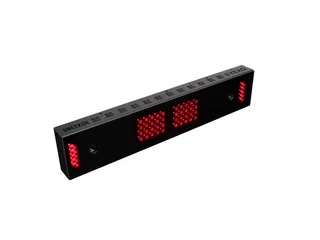
The EYE XO is front-mounted overhead on the ceiling in front of the golfer.
SpecificationsRead October 18, 2026
Specifications · Publication date not stated for this section
2 High-speed photometric infrared cameras with 24 club and ball data points
Uneekor: How much space is needed for setup?
How much space is needed for setup?Read October 18, 2026
How much space is needed for setup? · Publication date not stated for this section
mounted between 9 ft - 10 ft off the ground
This document supports the cited model or software requirement. We have not performed hands-on equipment testing.
GolfCompat provides planning information. Confirm the instructions for your exact equipment and have your room, swing clearance, and installation assessed before use. A listed equipment requirement does not certify personal safety.